Data obfuscation
How to hide customer data from your team in the Knock dashboard, and filter sensitive keys from the logs Knock stores.
Customer data obfuscation and filtered log keys protect sensitive data in your Knock account. Customer data obfuscation applies when your team views data in the dashboard, and leaves the underlying data in place. Filtered log keys apply when Knock writes a log, so the original value is never stored.
Overview
#When you choose Knock to power your notifications, you're also choosing to trust us with your customer data and the data you pass in your notifications. This is why security is a foundational priority for us at Knock, and it's also why we built our customer data obfuscation controls.
With customer data obfuscation controls, the Knock dashboard automatically hides any data that might contain either user PII or customer proprietary data. This means that the only data your team members will see in the Knock dashboard is anonymous data such as UUIDs. Customer data obfuscation is managed via our backend, so users won't be able to get at this data through their browser consoles.
You can enable customer data obfuscation in two ways:
- Environment-level. Hide customer data for every team member in a given environment. Use this to obfuscate production data while keeping development data visible for testing and debugging.
- Permission group. On Enterprise plans, hide customer data for members of a custom permission group, either in every environment or in specific environments.
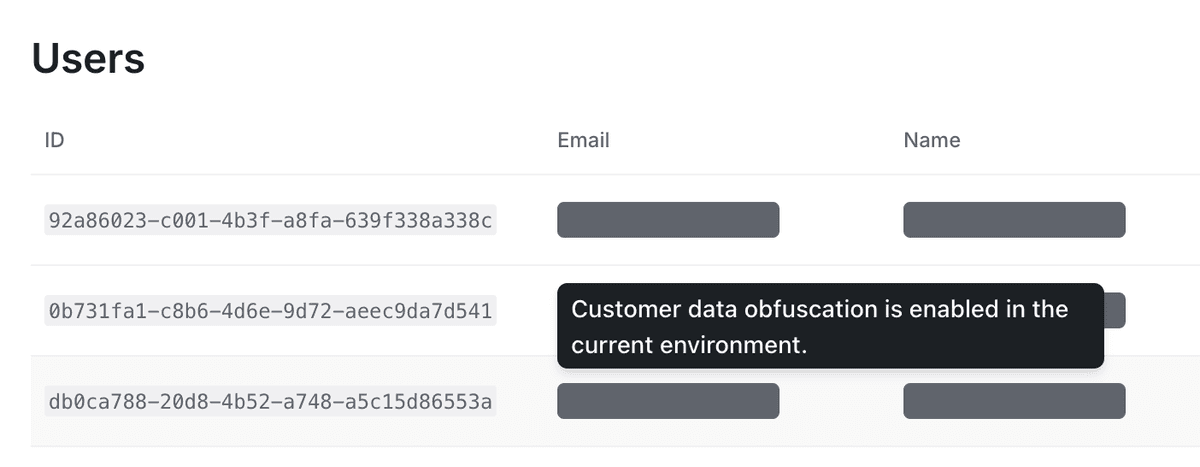
Environment-level obfuscation
#Environment-level obfuscation applies to every member in that environment, including members with built-in roles. Built-in roles have no per-role obfuscation setting.
To enable customer data obfuscation for an environment, go to the Environments page under the Version control section of your account settings in the Knock dashboard. Select the "..." for the environment you'd like to configure and click "Edit environment."
Per-member role obfuscation
#Custom permission groups can enable customer data obfuscation under environment access. When enabled, all message, user, and object data will be obfuscated in the Knock dashboard for members of that group.
Create and manage permission groups under Settings > Permissions. You set the obfuscation rule in the same editor you use for environment capabilities:
- Same access in every environment. Enable obfuscation once to apply it across development, production, and any additional environments.
- Per-environment access. Use granular mode to enable obfuscation in specific environments. For example, hide customer data in production for a support group, and leave it visible in development.
A group's obfuscation rule for a parent environment also applies to that environment's branches.
If a member belongs to more than one custom permission group, Knock hides customer data when any assigned group enables obfuscation for that environment. Learn more in our roles and permissions documentation.
Precedence
#If customer data obfuscation is enabled at the environment level, that setting applies to every member in the environment. A permission group cannot turn environment-level obfuscation off or reveal data the environment already hides.
A permission group can only add obfuscation. When the environment setting is off, the group's rule determines whether members of that group see customer data in that environment.
Filtered log keys
#Filtered log keys are key names whose values Knock removes from its logs. When Knock writes a log, it replaces the value of any matching key with [filtered], so the original value is never stored. Use them for data you pass to Knock that shouldn't persist in logs, such as one-time passcodes, password reset tokens, or credentials your workflows send to your own services.
Knock filters some common sensitive keys, such as password and api_key, by default. Filtered log keys extend that list with the key names specific to your data. They apply to every environment in your account and are available on all plans.
Managing filtered log keys
#To add a filtered log key, go to the Security page under the Admin section of your account settings in the Knock dashboard. Under Filtered log keys, enter the key name and click "Add key." To stop filtering a key, click the remove icon on its tag.
Account owners and admins can manage filtered log keys. Learn more in our roles and permissions documentation.
Each key name must meet these rules:
- It starts with a letter and contains only letters, numbers, underscores, and hyphens.
- It's 128 characters or fewer.
- It isn't already in the list. Filtered log keys are case-insensitive, so
OTP_Codecounts as a duplicate ofotp_code.
An account can have up to 50 filtered log keys.
How Knock matches keys
#- The whole key, in any case.
otp_codematchesotp_codeandOTP_CODE. It doesn't matchotp_code_expires_atoruser_otp_code. - At any depth. Knock checks keys inside nested objects and inside objects in arrays. When a key matches, Knock replaces its entire value, including an object or an array, with
[filtered]. - Key names, not values. Knock doesn't search values for a filtered term. A string that happens to contain
otp_codestays as it is.
Logs that Knock filters
#- API logs. Knock filters the query parameters, request body, and response body of each API log. Request headers use a fixed list of sensitive headers instead of your filtered log keys.
- Workflow run logs. Knock filters the trigger data in workflow run logs, and the logged request and response for each fetch function step.
- Message delivery logs. Knock filters the headers and JSON bodies of the requests it sends to your channel providers, and of the responses it receives.
- Source event and action logs. Knock filters the event contents and preprocessing script output in source event logs, and the action payload and result in action logs. Some keys that Knock filters by default in other logs, such as
email, stay visible here unless you add them.
Knock only filters the logged copy of the data. Your workflows, templates, fetch function steps, and source event actions still receive the full values.
Limitations
#- Logs written before you add a key. Knock filters logs when it writes them, so logs written before you add a key keep the original value until they age out under your data retention policy. Removing a key doesn't restore values Knock has already filtered.
- Rendered message content. Knock matches keys, not the text your templates produce. If a template renders a filtered key's value into an email body or SMS text, that value appears in the message content and in the delivery log of the request that sent it.
- Data outside of logs. Filtered log keys don't change the data Knock stores on the records your requests and source events create or update, such as users, objects, and messages, or the data Knock exports through data warehouse sync. Use customer data obfuscation to hide that data from your team in the dashboard.