Agent function
Learn how to use the agent workflow function to enrich data and personalize messaging in Knock workflows.
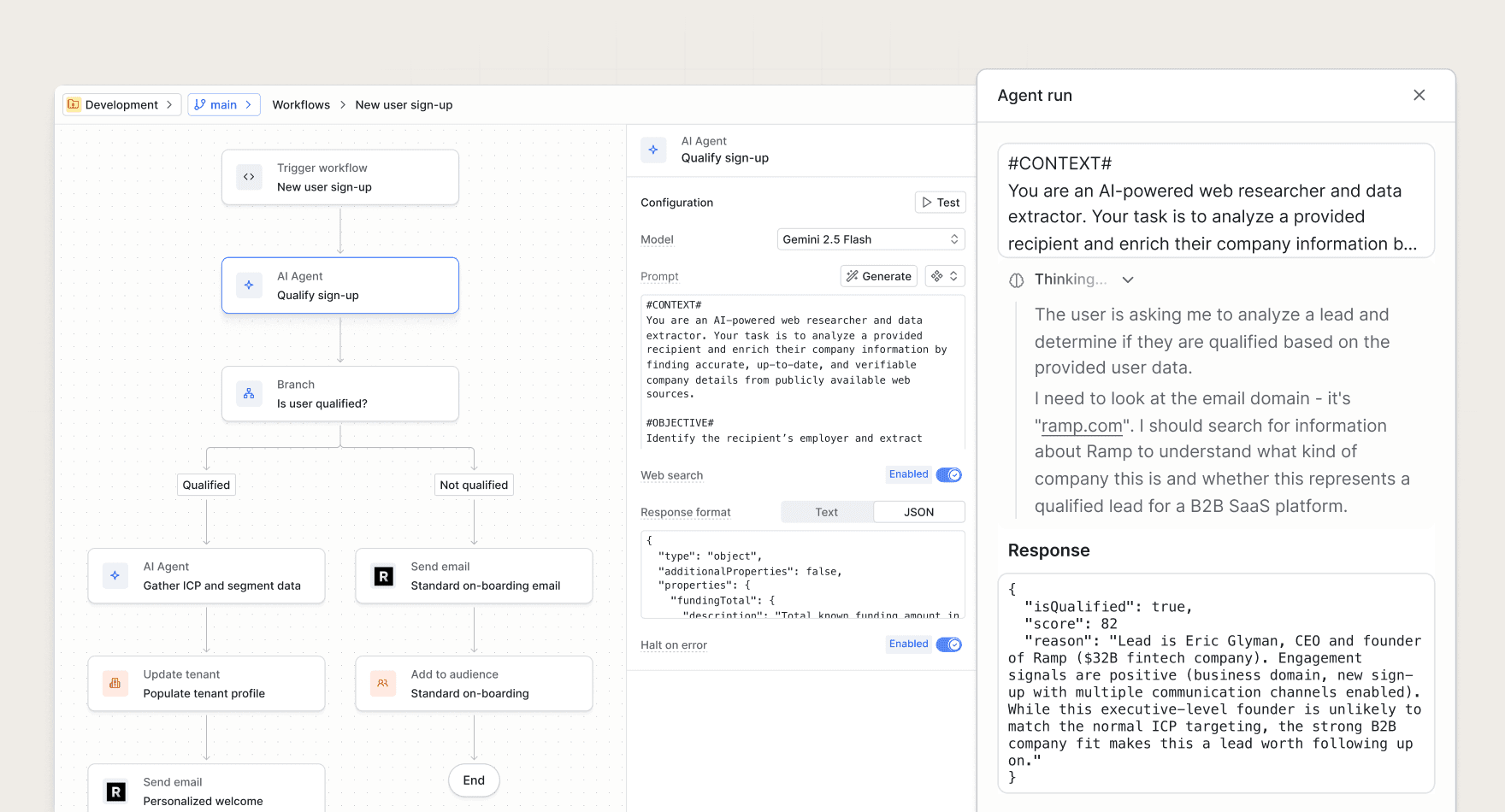
The agent function runs a prompt on an AI model of your choice and makes the response available in your workflow state. You can use it to enrich recipient data, personalize messaging, and bring AI-powered context into your messaging flows.
Common use cases include:
- Enriching recipient data. Use user and tenant properties (such as domain) to understand a recipient's market, use cases, and target persona.
- Personalizing messaging. Bring that context into your channel step templates to drive higher conversion rates.
- Summarizing batch content. Distill heterogeneous actions into a concise summary that reduces noise in digest notifications.
How it works
#When a workflow run reaches an agent step, Knock:
- Renders your prompt with the current workflow run scope (recipient, actor, tenant, data, etc.).
- Sends the prompt to the AI model you've selected.
- Adds the response to the workflow run data.
The response is stored as data.<step_ref>. You can reference this data in subsequent steps and templates.
Configuring an agent step
#Selecting a model
#Choose the AI model from the dropdown in the step configuration. The model you select affects both the quality of responses and the credit cost per step execution.
Generally we recommend using a faster, lightweight model for quick tasks (e.g. Haiku 4.5) and a more powerful model (e.g. Sonnet 4.5) for complex tasks.
Writing the prompt
#The prompt field accepts Liquid syntax, so you can inject variable data from the workflow run scope. For example:
You can reference:
recipient— The workflow run recipient.tenant— The tenant (i.e. company, organization, workspace) associated with the workflow run.data— The trigger payload passed to the workflow.actor— The user or system that triggered the workflow.vars— Your environment variables.
See the Knock template editor reference for more on working with Liquid in Knock.
Response format
#By default, the agent returns a single string response available as data.<step_ref>.text.
You can set the response format to JSON when you need structured output for use in templates or branch steps. When using JSON format, you must supply a JSON schema for the shape of the data that you'd like the agent to fill in.
Web search
#When web search is enabled, the agent can use a browser to crawl pages and gather information. This is useful for enriching data based on a recipient's domain or website amongst other research tasks.
Web search increases the credit cost of each step execution.
Testing agent steps
#You can run test executions of your agent step from the workflow editor. Test runs do not consume credits.
- Open the agent step in the workflow editor.
- Click the test button next to the prompt field.
- Specify the trigger parameters (actor, recipient, trigger data, tenant) for the test run.
- Click Run test.
The test runner executes only the agent step in isolation. If your step expects data from a preceding step (such as a batch or fetch), include that data in the Data field when running the test.
Credits and billing
#Agent function executions consume agent credits. Credits are used when the step successfully runs in a workflow. Test runs do not consume credits.
The credit cost per execution depends on:
- Model. Each model has a different credit cost per run.
- Web search. Adds credits per execution.
- Input/output tokens. The number of tokens in the prompt and response.
The credit cost you're charged will either be the minimum cost of the model (and web search, if enabled) or the actual cost of the input/output tokens, whichever is greater.
Managing credits
#- Included credits. Your plan includes a set amount of credits per billing period. Credits do not roll over.
- Purchasing credits. When you need more, go to the Billing page in your account settings to purchase additional credits.
- Auto-purchase. You can configure a threshold and amount for automatic credit top-ups when your balance falls below a certain level.
- Running out of credits. When you run out of credits, agent steps halt. You can configure behavior when this happens (e.g. continue the workflow or stop the workflow).
Credit reference
#When web search is enabled, the minimum credit cost is increased by 3 credits per execution.
Understanding credit use
#You can see the minimum credit costs for a selected model in the agent function in the workflow editor.
When you run a test execution of the agent step, you can see the actual credit cost for the execution that your account would have been charged.
In the workflow debugger, you can see the actual credit cost for each step execution under the credits column.
Error handling
#When an agent step fails (e.g. model error, timeout, or invalid response), Knock marks the step as failed. You can configure whether the workflow should halt or continue to the next step when an agent step fails using the "Halt on error" setting.
The agent step will retry up to 3 times for certain types of errors:
- Model errors. The model returns an error response.
- Timeout errors. The request takes longer than the model's timeout.
- Unexpected errors. The model returns an unexpected response.
Note: we will not retry when the model returns an error response or indicates that they could not fulfill the request.
Debugging agent steps
#You can use the workflow run logs to debug agent steps. For each agent step, the logs include:
- The rendered prompt sent to the model.
- The model response.
- The duration of the request.
- Any errors encountered.