Update audience function
Learn how to add or remove users from a static audience during a workflow run.
An update audience function adds or removes a user from a static audience.
You can add or remove users from a static audience to trigger other workflows, send broadcasts, and make the recipient eligible to see guides.
Common use cases include making a user eligible for a guide after they complete an onboarding step, removing a user from a promotional audience after they convert, or syncing audience membership based on data available in your workflow trigger.
Choosing the action
#The update audience step supports two actions:
- Add to. Adds the current recipient to the selected static audience. If the recipient is already a member, the step succeeds with no change.
- Remove from. Removes the current recipient from the selected static audience. If the recipient is not a member, the step succeeds with no change.
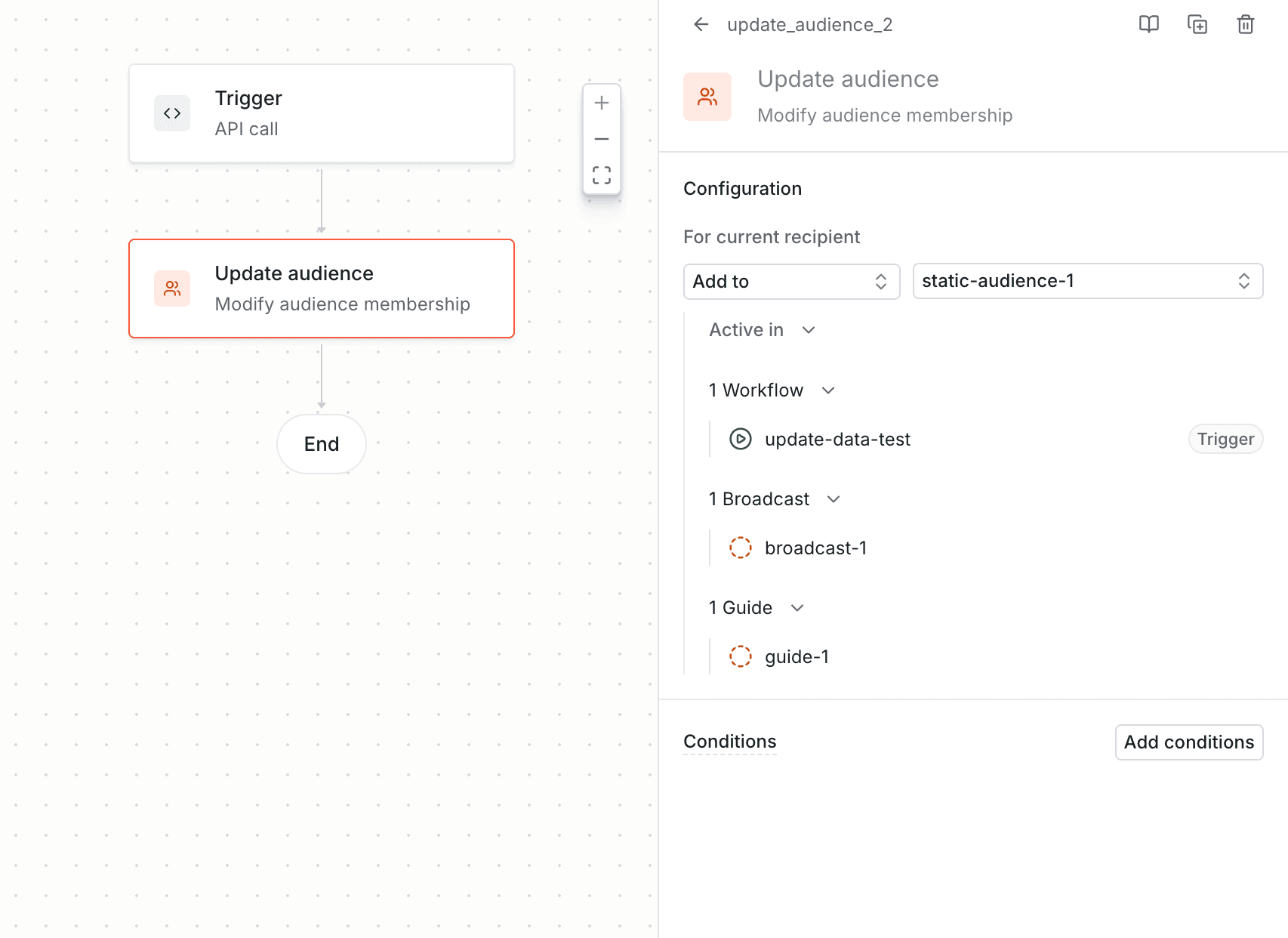
Update audience function step in the workflow builder.
Selecting the audience
#Choose a static audience from the audiences available in your environment. The dropdown lists all static audiences that have been created and committed in the current environment.
Once you select an audience, the step shows usages of the selected audience, including workflows, broadcasts, and guides.
Limitations
#The update audience step only works with static audiences.
The step always operates on the current workflow user.
An update audience step cannot Add to the same audience that triggers the workflow. If your workflow uses an audience change trigger, the trigger audience is not available in any update audience steps within that workflow. Likewise, if a workflow already contains an update audience step Adding to a given audience, that audience cannot be selected as the trigger audience.
Debugging
#You can use the workflow run logs to debug update audience steps. When viewing a workflow run for a specific recipient, select the update audience step to see whether the recipient was added to or removed from the audience, and the audience that was targeted.
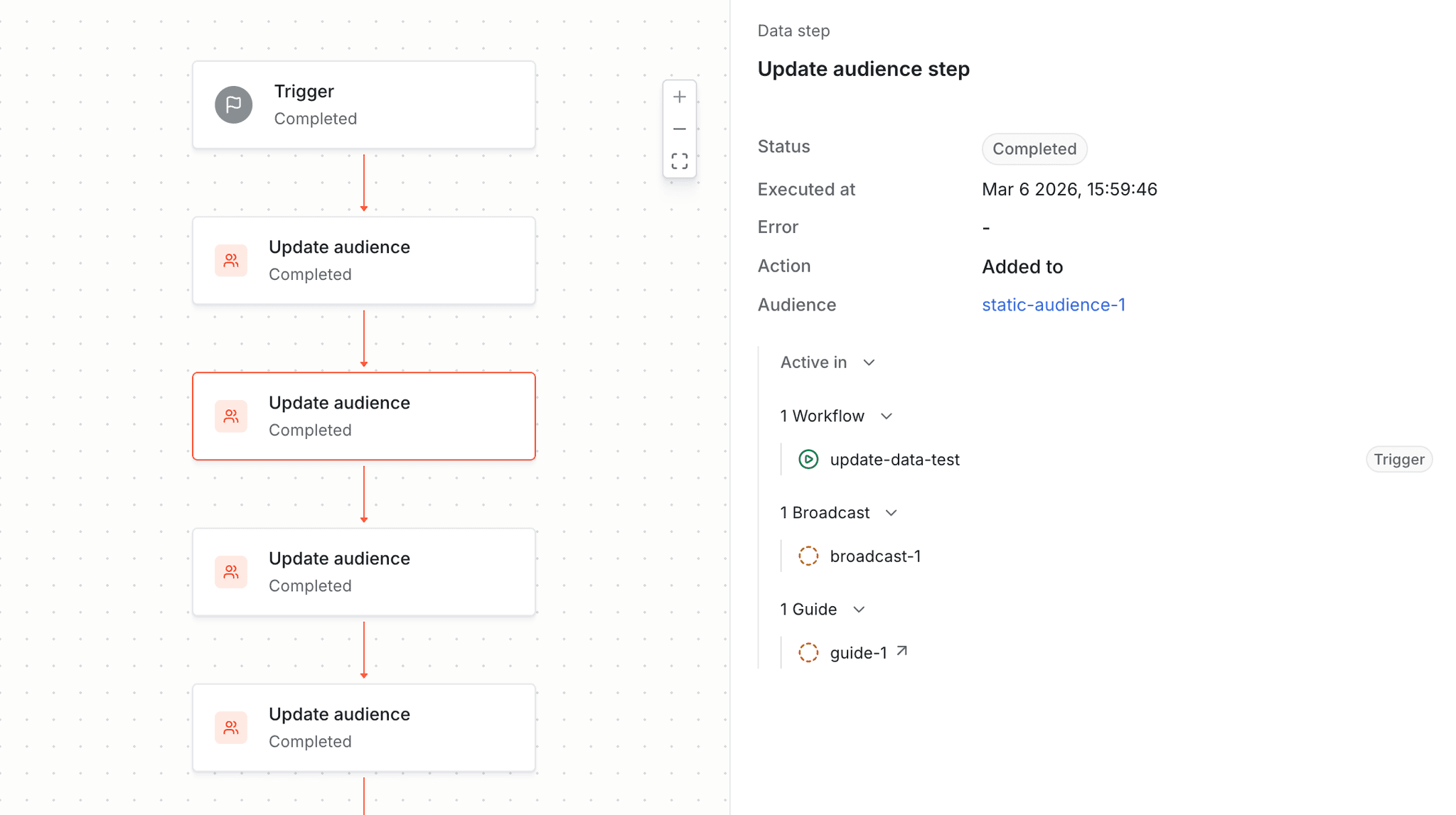
Viewing an update audience step in the workflow run logs. The recipient was added to the audience.
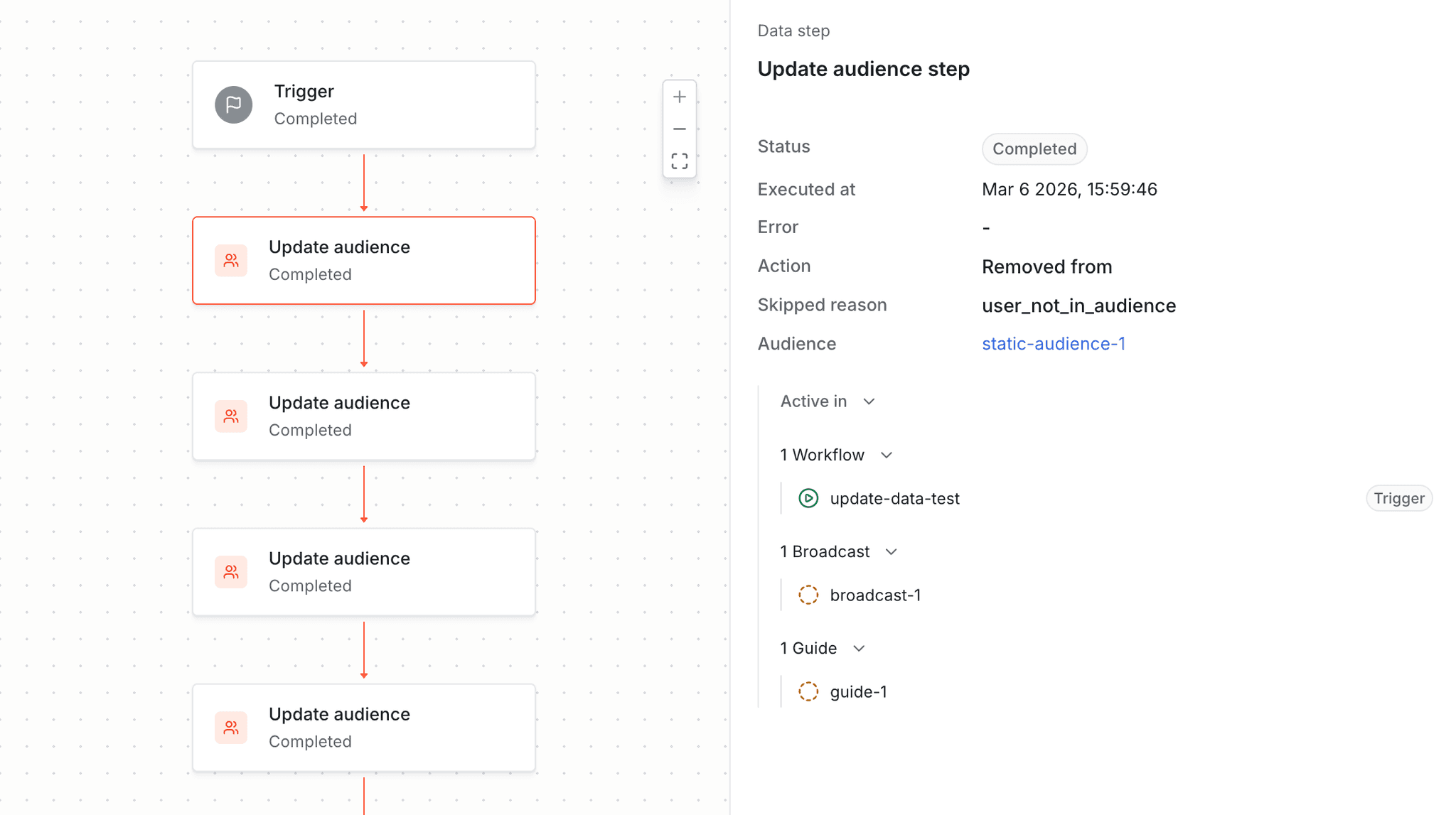
Viewing an update audience step in the workflow run logs. The recipient was not removed from the audience because they were not a member.