Email templates
Learn how to work with email templates in Knock.
Knock has full support for building rich email templates to power your transactional, lifecycle, and marketing emails. Teams use Knock's powerful component features to build email design systems and empower their product and marketing teams to create consistent, brand-compliant emails.
Layouts and templates
#When you use Knock to power your email notifications, you use two main concepts to build the notifications that will be sent to your users: layouts and templates.
The layout typically includes the header and footer of your email, as well as any other HTML or CSS that will be used across all (or multiple) templates. You can think of your email layout as the "frame" of your email notifications, where you define the shared structure and styles once for all your email notifications so they can look and feel consistently without having to repeat them in every template.
The template is the actual body and content of your email. When you add an email step to a workflow, the content that you edit within the template editor is the template that will be wrapped by the layout mentioned above. Under the hood, Knock is injecting this template into the {{content}} variable of the email layout.
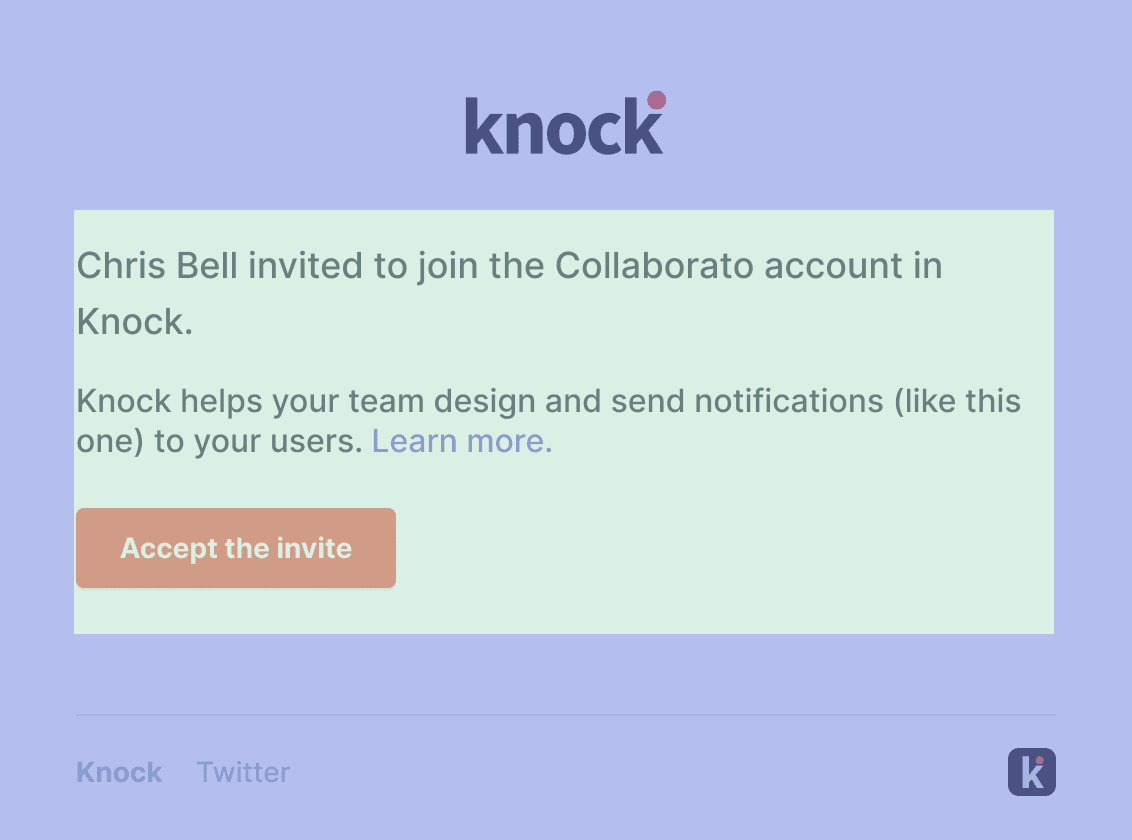
Here's an example of a transactional email we send at Knock, complete with the template content merged into the layout. The area shaded in green is the template. The area shaded in blue is the layout.
When working with email templates, you can select the email layout that will be used by navigating the the "Template settings" modal.
Learn more about working with layouts.
Visual editing with drag-and-drop components
#Knock's email template editor includes a visual editor you can use to compose your template with drag-and-drop components. By default, Knock comes with a number of prebuilt components that you can use to compose your template (e.g. buttons, dividers, text, images, etc.).
Using HTML partials, you can extend the components available in the visual editor with your own custom components.
Working with templates in the code editor
#In addition to the visual editor, you can also work with email templates in the code editor. This gives you full control over the HTML and CSS of your email templates, and is useful for more complex use cases.
You can enter the code editor by clicking the "Code editor" button in the top right of the template editor. Note: when in code editor, switching to the visual editor will not preserve any changes you've made.
Working with partials in email templates
#Partials are reusable pieces of content you can use across any of your templates, including email templates. Partials can be HTML blocks that can also be shown as blocks in the visual editor. This allows your team to create a library of "components" for an email design system.
Learn more about working with HTML partials.
Previewing email templates
#You can preview your email templates in the right hand preview pane in the template editor. This preview will show you how your email template will look when sent to a recipient.
Client-specific previews
#Knock provides client-specific previews of your email templates, powered by Litmus. This allows you to see how your email template will look in different email clients including Gmail, Outlook, and Apple Mail using our Email client previews feature.