Update data function
Learn more about the update data function within Knock's notification engine.
An update data function updates properties on the workflow data state as a step in a workflow. Any data set by an update data function is merged into the original trigger data provided on the workflow trigger and made immediately available to all subsequent steps in the workflow.
Configuring data properties
#To configure an update data function, you can add key-value pairs in the step editor or use the code editor to input a JSON object directly. Each key represents a property name that will be set on the workflow data, and each value can be either a static value or a Liquid expression.
Each value field is a Liquid-compatible input. This means you can use Liquid variables and control flow to inject variable data, access Knock-controlled workflow state attributes (e.g., recipient), and dynamically compute values per workflow run.
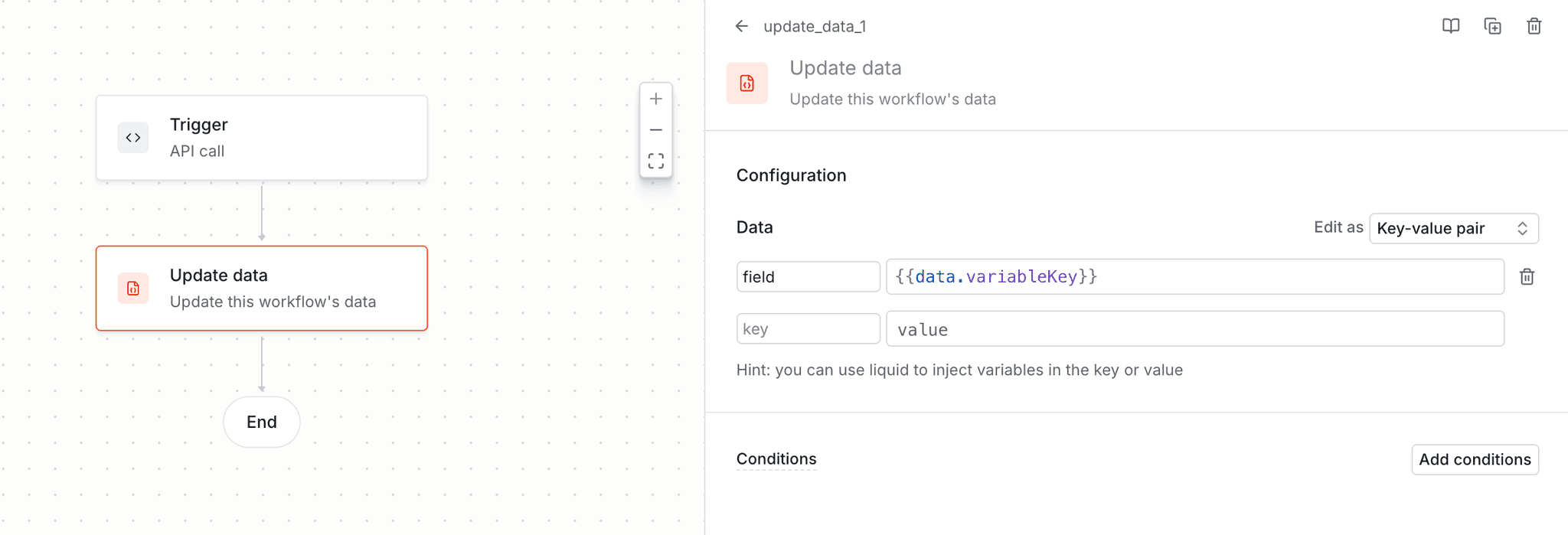
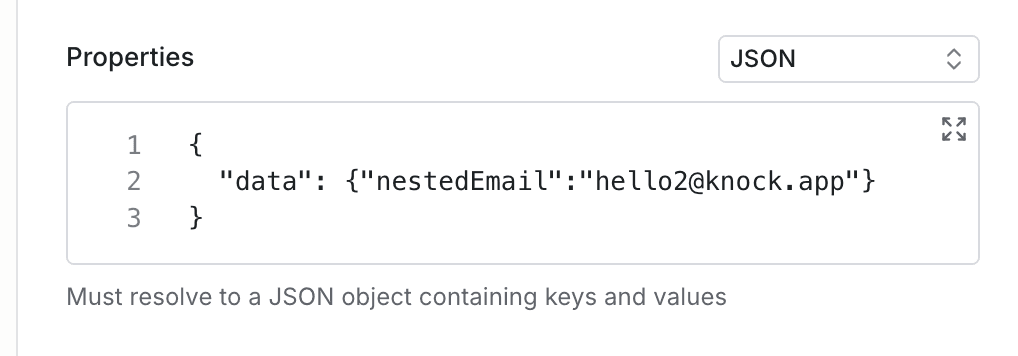
Code editor mode for configuring an update data function.
Here are some example configurations:
See the Knock template editor reference for detailed information on working with Liquid in your Knock message templates.
Merging data
#When an update data function executes, Knock will merge the configured properties into the data you originally passed to the workflow trigger call. Knock uses a shallow-merge strategy where:
- Top-level keys from the update data step are merged into the existing workflow run data, adding new keys and replacing existing ones.
- Nested objects are replaced entirely rather than deep-merged. If the original data has a nested object and the update data step sets the same key, the entire nested object is overwritten.
The merged data result from an update data function step then becomes the global trigger data for all subsequent steps in the workflow run.
The example below illustrates how this could look in practice.
Debugging update data functions
#You can use the workflow debugger to debug your update data function steps. When viewing a workflow run for a specific recipient, you can select the workflow data function step to see the computed data that was merged into your workflow run state.
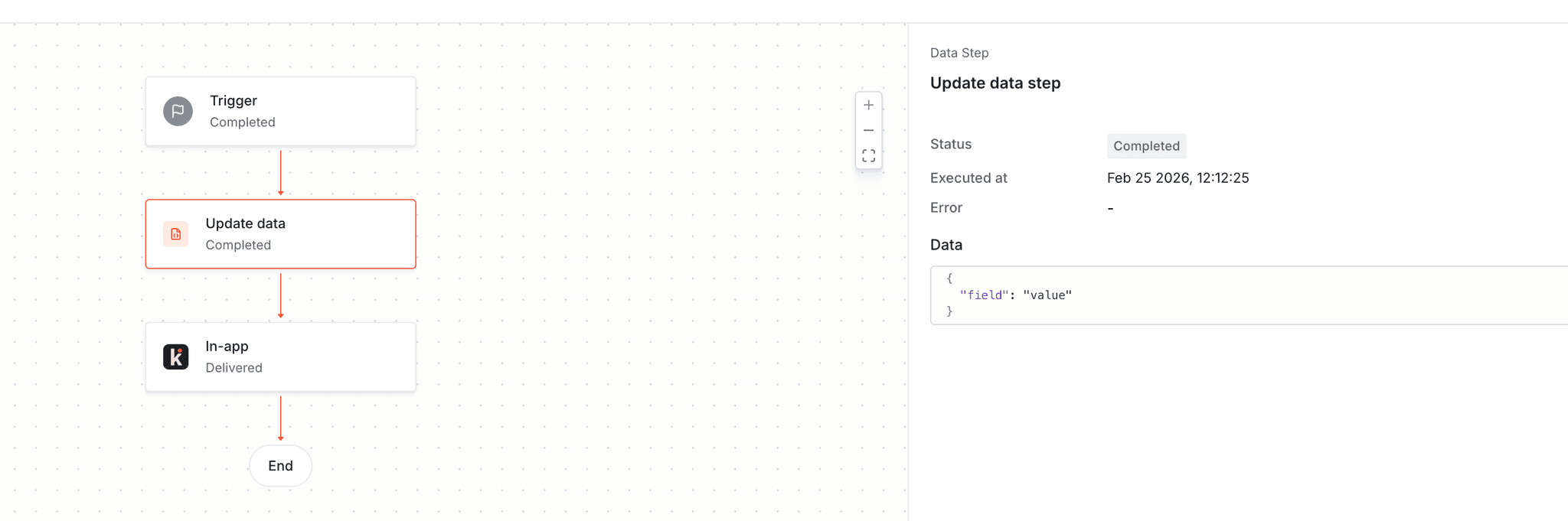
Viewing update data function step in the workflow run logs.