Analytics
Learn how to measure message volume, delivery, and engagement across your workflows, guides, and channels.
The Analytics page in the Knock dashboard gives you a high-level view of message volume, delivery, and engagement across your account. Use it to see how many messages you're processing, track delivery and engagement rates over time, and find the workflows, guides, and channels that drive the most activity.
Overview
#
Metrics found on the Analytics page are scoped to the environment you're viewing and reflect your account's data retention period. The top of the page summarizes message activity for your selected time range and filters. Knock generates a message each time a workflow or broadcast runs a channel step for a recipient and the summary metrics roll those messages up by delivery status.
Below the summary metrics, you'll find two additional views:
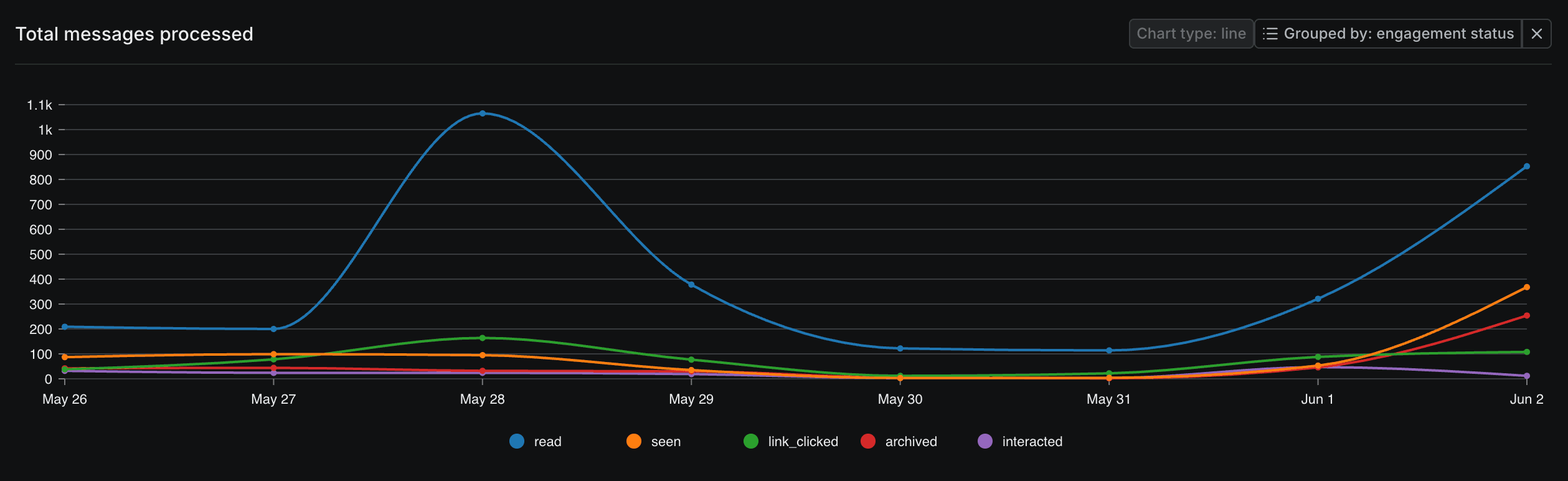
- Total messages processed chart. A time series of message volume across the selected range. You can break this chart down by dimension — see grouping data for details.
- Top results tables. Breakdown tables that rank your highest-volume workflows, guides, and channels for the current range and filters.
Filtering data
#The time range and the filter menu scope every metric, chart, and table on the page to your selections.
Use the time range selector to choose your reporting window, such as Last 7 days. You can report on any window within your account's data retention period.
Use the Filter menu to narrow the data to a subset of your messages. You can filter by:
- Channel. A specific configured channel.
- Channel type. A class of channel, such as email, in-app feed, push, SMS, or chat.
- Delivery status. A point in the delivery lifecycle, such as
deliveredorundelivered. - Tenant ID. The tenant a message is scoped to.
- Workflow. The workflow that generated the message.
- Guide. The guide that generated the message.
Select your filters and choose Apply to update the page, or Clear to reset them.
Grouping data
#The total messages processed chart supports grouping, which splits the single line into one line per value of the chosen dimension. Open the Group by menu on the chart and select one dimension:
- Channel. One line per configured channel.
- Channel type. One line per class of channel.
- Delivery status. One line per delivery status.
- Engagement status. One line per engagement status, such as seen, read, link clicked, interacted, or archived.
- Workflow key. One line per workflow.
- Guide key. One line per guide.
For example, grouping by engagement status renders a separate line for read, link clicked, seen, archived, and interacted, so you can compare how recipients engage over time. You can also set the chart type used to render the series.
Workflow analytics
#Each workflow has an Analytics tab that shows run, delivery, and engagement metrics specific to that workflow. Sent broadcasts also include an Analytics tab with the same metrics.
The Analytics tab has two panes:
- Steps. Shows the workflow’s steps as a read-only canvas or table, with quick metrics like completed, delivered, read, and clicked. The table view also includes removed steps with activity in the selected time range.
- Details. Shows metrics for the entire workflow by default. You can select a step to view detailed metrics for that step.
Use the time range selector to choose a window within your account's data retention period, or click and drag across any chart to zoom into a range.
Use the comparison dropdown to compare the current period against:
- The previous period
- The same period last month
- A custom start date
- The same period for another message step in the workflow
The charts also mark each committed version of the workflow within the selected window, so you can line up changes in your metrics with changes to the workflow.
Workflow overview
#The overview shows up to four cards:
- Runs. Completed workflow runs, with counts of in-progress, errored, and canceled runs.
- Messages. Delivered messages, with counts of bounced, undelivered, and not sent messages.
- Engagement. One metric per engagement status that applies to the workflow's channel types, such as seen, read, clicked, or interacted.
- Top links clicked. The most-clicked links across the workflow's messages, and the step each was sent from.
The engagement and top links cards have a Unique and Total toggle. Unique counts each recipient once in the window and is an approximate count. Total counts every event, including repeats from the same recipient.
Metric definitions
#Each count is dated to when its own event occurred. A message delivered or clicked after the window in which its run started is counted in the later window, so a step's delivered count can exceed what its reached count implies. See understanding message events for how events are counted and dated.
Understanding message events
#Knock analytics are based on message events, which affect how engagement is counted and dated.
Event counts
#Engagement metrics include every event, not just the first occurrence. A recipient who clicks the same message three times is reported as three clicks rather than one.
Event dates
#Engagement metrics are dated to when the event occurred, not when the message was created. For a message sent on March 1st and clicked on March 2nd, Knock shows a click event on March 2nd.
Unique recipients
#Unique recipients is a top-level metric that counts the number of distinct recipients across all messages processed for your selected time range and filters.
Related docs
#- Message statuses — how Knock tracks delivery and engagement for each message.
- Link and open tracking — capture the link clicks and email opens that feed engagement metrics.
- Guide analytics and observability — per-guide metrics for in-product messaging.