Experiment function
Learn more about the experiment workflow function within Knock's notification engine.
The experiment function enables you to split recipients into randomized cohorts within your workflows, routing each recipient down a specific branch based on a percentage-based distribution. This is useful for A/B testing notification content, gradually rolling out new notification strategies, or running experiments across your recipient base.
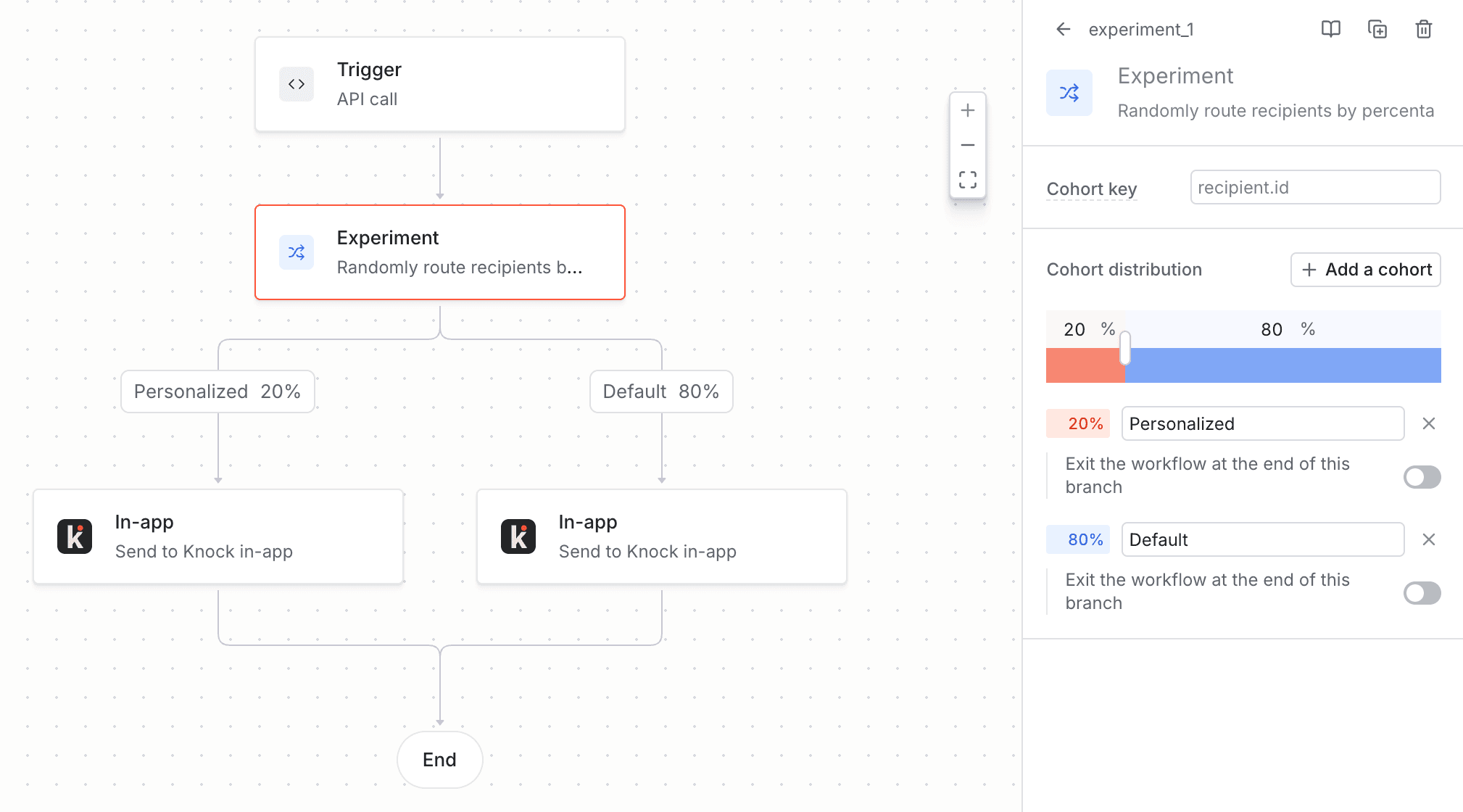
How it works
#Each cohort in an experiment has a percentage weight, and those weights divide a scale from 0 to 100 into ranges. When a workflow run reaches an experiment step, Knock assigns the recipient to a cohort using the following process:
- Cohort key. Knock hashes the value of the cohort key to assign the recipient a spot on the 0 to 100 scale. The assigned spot is specific to each experiment step, so a recipient's cohort assignment in one experiment has no bearing on their assignment in another.
- Percentage distribution. Knock reads the recipient's assigned spot on the scale against the experiment's configured cohort ranges to identify the recipient's cohort. For example, in a 30/70 split, recipients assigned a spot below 30 belong to the first cohort and everyone else goes to the second. Hashing the same cohort key always produces the same result, so a recipient is assigned to the same cohort every time the workflow runs.
- Branch execution. Once assigned to a cohort, the recipient proceeds through the steps defined in their cohort's branch.
Configuring experiments
#A new experiment step starts with two evenly-distributed cohorts. You can add additional cohorts, adjust the percentage distribution between them, and set a cohort key to group similar recipients together.
- Cohort key. A cohort key is used to determine a recipient's cohort assignment when your experiment step runs. Configuring one is optional; by default, Knock uses
recipient.idas the cohort key. Map it to a custom value using the variables available to a workflow run. - Percentage weights. Set the percentage for each cohort to control the distribution of recipients. The total across all cohorts must equal 100%.
Grouping your recipients
#The experiment function randomly assigns recipients to cohorts person-by-person. If you'd like to group recipients together by a shared property to ensure that similar users receive the same messaging, you can configure a custom cohort key.
For example, a key of tenant.id groups recipients by tenant. This guarantees that recipients under a given account receive the same messaging as their teammates. A property such as recipient.role means that everyone with the same role will receive the same messaging.
Selecting a cohort key
#A cohort key can be configured as one of the following:
- A path that references a workflow variable. A key of
data.account_iduses theaccount_idproperty you send in thedatapayload of your workflow trigger. You can also reference other properties liketenant.id,actor.id, or an environment variable under thevars.*namespace. - A Liquid expression. A key such as
{{ tenant.id }}-{{ data.order_id }}combines several variables into one key. Knock uses the expression's resolved value as the cohort key.
Keep in mind that when a Liquid expression references data that isn't available, it evaluates as an empty string ("") instead of a missing value, so the workflow run continues. Every recipient with missing data will end up with the same empty value for their cohort key, which assigns all of them to the same cohort and skews your results. If you use a Liquid expression for your cohort key, confirm that the data behind it is always present.
Use cases
#The experiment function is well-suited for:
A/B testing
#Test different notification templates, copy, or channels to see which performs better. For example, split recipients 50/50 between two email templates to measure engagement.
Gradual rollouts
#Roll out a new notification strategy to a small percentage of recipients before expanding to all users.
Random cohort experimentation
#Run multi-variant experiments by splitting recipients across three or more cohorts with different notification flows.
Holdout testing
#Test whether or not a particular message adds lift to your conversion goals. This type of test is a variation of A/B testing where one cohort receives a message and the other cohort does not. It's helpful in determining if a message is useful.
Nesting experiment steps
#Experiment steps can be nested inside other experiment steps, regular branches, or any other workflow function. This enables you to create more complex experimental setups, such as splitting recipients into cohorts and then further splitting within each cohort.
Analytics
#Debugging experiment steps
#You can debug experiment step execution in the workflow debugger. During a workflow run, the debugger shows which cohort was chosen for each recipient, including the cohort key value used for assignment and the percentage distribution across cohorts.
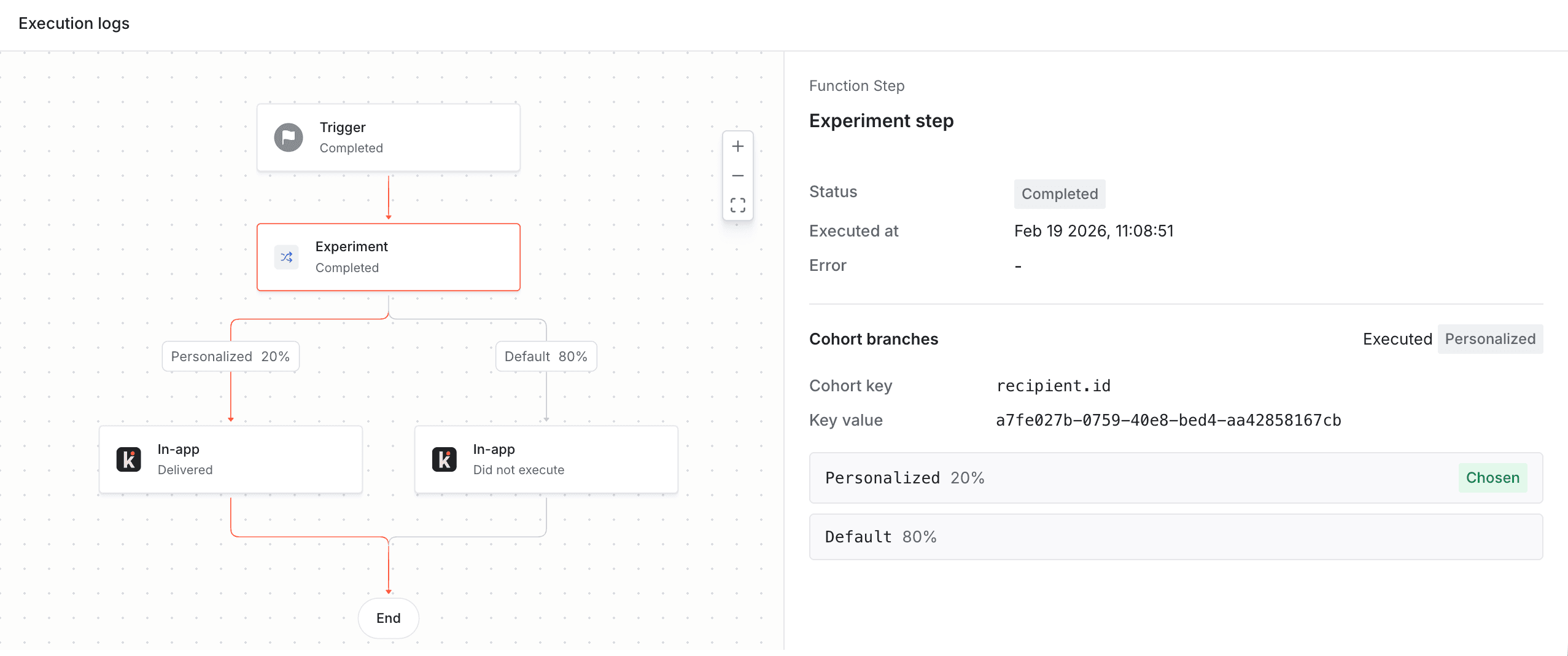
A cohort_key_missing error in the debugger indicates that the cohort key had no value for the current workflow run, so the experiment step terminated and the workflow run stopped. When this occurs, check to make sure that the cohort key maps to a variable that is always present for the recipients of your workflow.